
If this sad story sounds familiar, All your contacts,messages,photos WIPED...! What’s an Android aficionado to do in a case like this? Like your mother once said, “Plan ahead.”
Planning ahead is the easiest way to make sure your data isn’t lost to the ether, even if your phone is destroyed. Luckily, Google syncs much of your contacts, calendar appointments, docs, and even app purchases with your Web-accessible Gmail account – as long as you give Google permission to do so.
While Google will preserve a lot of your data, there are other programs that backup the same data and more – including apps and photos – wirelessly to the cloud. Read on to find out how to back up your Android phone’s content to your PC.
Go with Google
 Giving
Google permission to back up your stuff will vary slightly from phone
to phone. In general, you’ll want to go to Settings > Backup and
Reset > then tap “Backup my data” and “Automatic Restore.” You’re not
done yet. While in Settings go to Accounts and click on the Google
Account you want to sync your to data to. Tap the sync icons next to
Email, Contacts, Calendar, Books, and any other service you want to
virtually back up. That’s it.
Giving
Google permission to back up your stuff will vary slightly from phone
to phone. In general, you’ll want to go to Settings > Backup and
Reset > then tap “Backup my data” and “Automatic Restore.” You’re not
done yet. While in Settings go to Accounts and click on the Google
Account you want to sync your to data to. Tap the sync icons next to
Email, Contacts, Calendar, Books, and any other service you want to
virtually back up. That’s it.But that’s not the only backup trick Google has up its sleeve. If you use Google’s Music service, all of your tunes will be preserved on Google’s servers, even if both your phone and your computer die at the same time. If you have a large music collection like we do, the initial upload process will take a long time – we’re talking days. But once the first upload is done, subsequent albums will upload as they are added to your collection. Your music can then be streamed to up to ten Android devices or to other computers.
Photos, videos, and music from your Android phone may also be transferred straight to your PC or Mac by plugging your phone into your computer and manually copying the files over to your hard drive. It’s not a perfectly synced solution, but it’s quick and easy, especially on a PC where Windows will mount it as an external drive. For Macs, download Android FileTransfer, install it, and run it once when you first connect your phone. It’ll start up automatically after that.
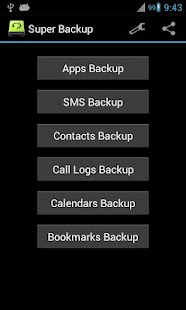 KNOCK Super Backup..!
One of the best backing up application i ever came across...
With features like :
-Backup apps to SD card
-Backup & restore app's data(need root)
-Batch restore apps from SD card (need root)
-Backup Contacts & SMS & Call logs & Bookmarks & Calendars to SD card
-Restore Contacts & SMS & Call logs & Bookmarks & Calendars from SD card
-Can select SMS conversations to backup
-Delete the backup data on SD card
-Schedule automatic backups
-Auto upload scheduled backup files to your Gmail
-Show last backup count & time
-User can change backup folder path in Settings
-Backup & restore app's data(need root)
-Batch restore apps from SD card (need root)
-Backup Contacts & SMS & Call logs & Bookmarks & Calendars to SD card
-Restore Contacts & SMS & Call logs & Bookmarks & Calendars from SD card
-Can select SMS conversations to backup
-Delete the backup data on SD card
-Schedule automatic backups
-Auto upload scheduled backup files to your Gmail
-Show last backup count & time
-User can change backup folder path in Settings
It Comes Free In Android Market
Go Ahead and Download your Copy..!!
Link:

Samsung Kies
 If
you have a Samsung Android phone, you’re in luck – Samsung’s got its
own proprietary software for keeping your device backed up. There’s an
app called Kies Air that comes pre-installed on most devices, as well as
software for your PC or Mac called Kies.
If
you have a Samsung Android phone, you’re in luck – Samsung’s got its
own proprietary software for keeping your device backed up. There’s an
app called Kies Air that comes pre-installed on most devices, as well as
software for your PC or Mac called Kies.The Kies Air app allows you to connect to a computer running on the same Wi-Fi network. From your computer’s browser you’re able to explore, view, copy, and transfer the data currently on your phone. The app will give you an IP address to enter into your browser and then a PIN code. After this short setup, you’re good to go.
On desktop side, the Kies program is specifically designed to backup your data. Start by connecting your Samsung phone via USB to your computer and opening the Kies software. When Kies detects that your phone is connected, it’ll display an icon for your phone along with information about how much free space you have left. Along the top, you’ll see a row of tabs. Simply click “Backup/Restore” and check the box at the top for all items. That’s it. Now grab some coffee while the phone backs up for the first time. If you don’t want to preserve everything on your phone, Kies also gives you the option of selecting certain things, such as contacts or music to back up.

Back that phone up!
As G.I. Joe would say, “Knowing is half the battle.” The other half of the battle is backing up your data in case your phone accidentally meets the wheels of a truck. Google is definitely an ally in the backup battle, but you’ll want to enlist the assistance of the apps above to ensure all of your photos, notes, and messages are protected.What are you waiting for? Go. It’s time to start backing up your phone!


